
Clean up your images and make the edits you imagined
Remove a distracting object, give your image more room or improve its quality. Keoo AI Image Editor brings practical editing tools and prompt-based creative changes into one workspace.
Explore AI Image Editor ↗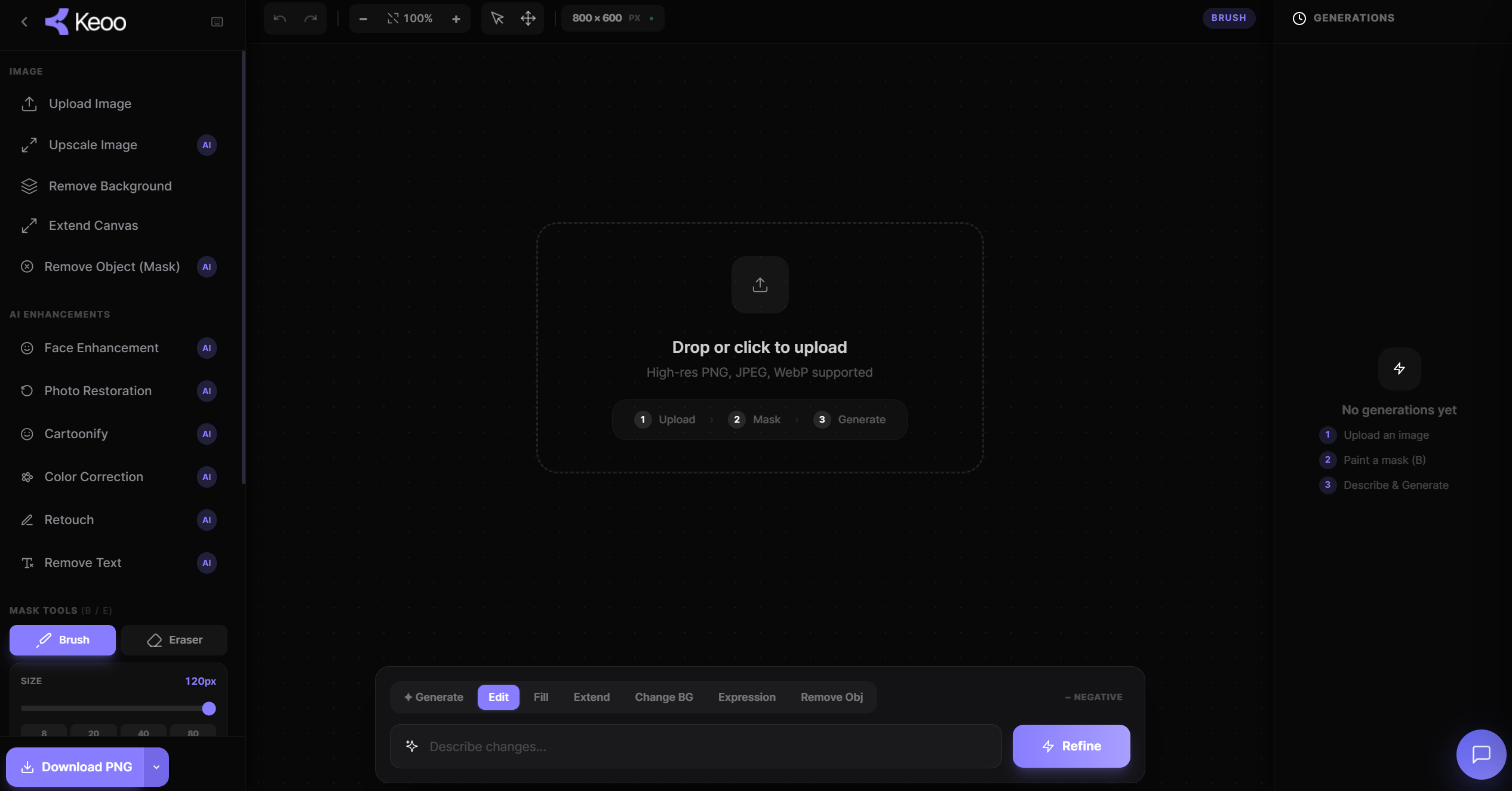
What is Keoo AI Image Editor
Keoo AI Image Editor helps you edit and enhance images with AI. Upload an image and use built-in tools to improve it, clean it up or explore a new creative direction. You can make changes with simple prompts and use masking tools to help refine your edits.
It is designed to make common image tasks easier without requiring advanced editing skills. Start with the image you have, then choose the change that will make it more useful for your project.
Make practical changes in one place
- Upscale resolution to prepare a higher-resolution version of an image.
- Remove backgrounds to isolate the subject.
- Extend the canvas when your composition needs more room.
- Erase unwanted objects or remove text from an image.
- Use prompts and masking tools to guide creative edits.
- Explore face enhancement, photo restoration, cartoonify, colour correction and retouching.
Give your main subject more attention
A distracting object or busy background can pull attention away from the point of an image. Use the relevant removal tools to simplify the visual, then check that the result still looks natural.
For example, a product photo might work better without an unrelated object beside it. Removing that distraction can make the composition clearer. Review the edges and surrounding area so the edit supports the image rather than drawing attention to itself.
How to edit an image with Keoo
- Upload the image you want to improve or transform.
- Choose the editing tool that matches your goal.
- Use a prompt or mask where needed to guide the change.
- Review the result and make further adjustments before using it.
Explore a new look or restore an older photo
Image editing can be about recovering detail, improving presentation or trying a different visual style. Keoo includes photo restoration, face enhancement and retouching tools, as well as cartoonify for a more playful treatment.
Choose the tool that fits the purpose of the image. An older family photo may call for a careful restoration, while a creative social post may suit a stronger transformation. Review the result closely, especially faces, fine details and any text you want to preserve.
Make room for your content
If the original framing feels too tight, canvas extension gives you another way to develop the composition. Think about where the image will appear and how it will sit alongside your message.
For a campaign, keep your colour and visual direction consistent across the assets. You can create starting images in Idea Lab, refine them in the Image Editor and use them in your wider content workflow.
Frequently asked questions
Can I remove backgrounds and unwanted objects?
Yes. Keoo AI Image Editor includes background removal and object erasing, as well as text removal.
Can I describe an edit in words?
Yes. You can make creative edits with simple prompts and use masking tools to help guide the work.
Can I improve or restore a photo?
Keoo includes upscaling, face enhancement, photo restoration, colour correction and retouching tools. Review the output to make sure it fits your intended use.
Start with an image and a clear direction
Upload an image, choose your first edit and refine the result in Keoo.
Explore AI Image Editor ↗